
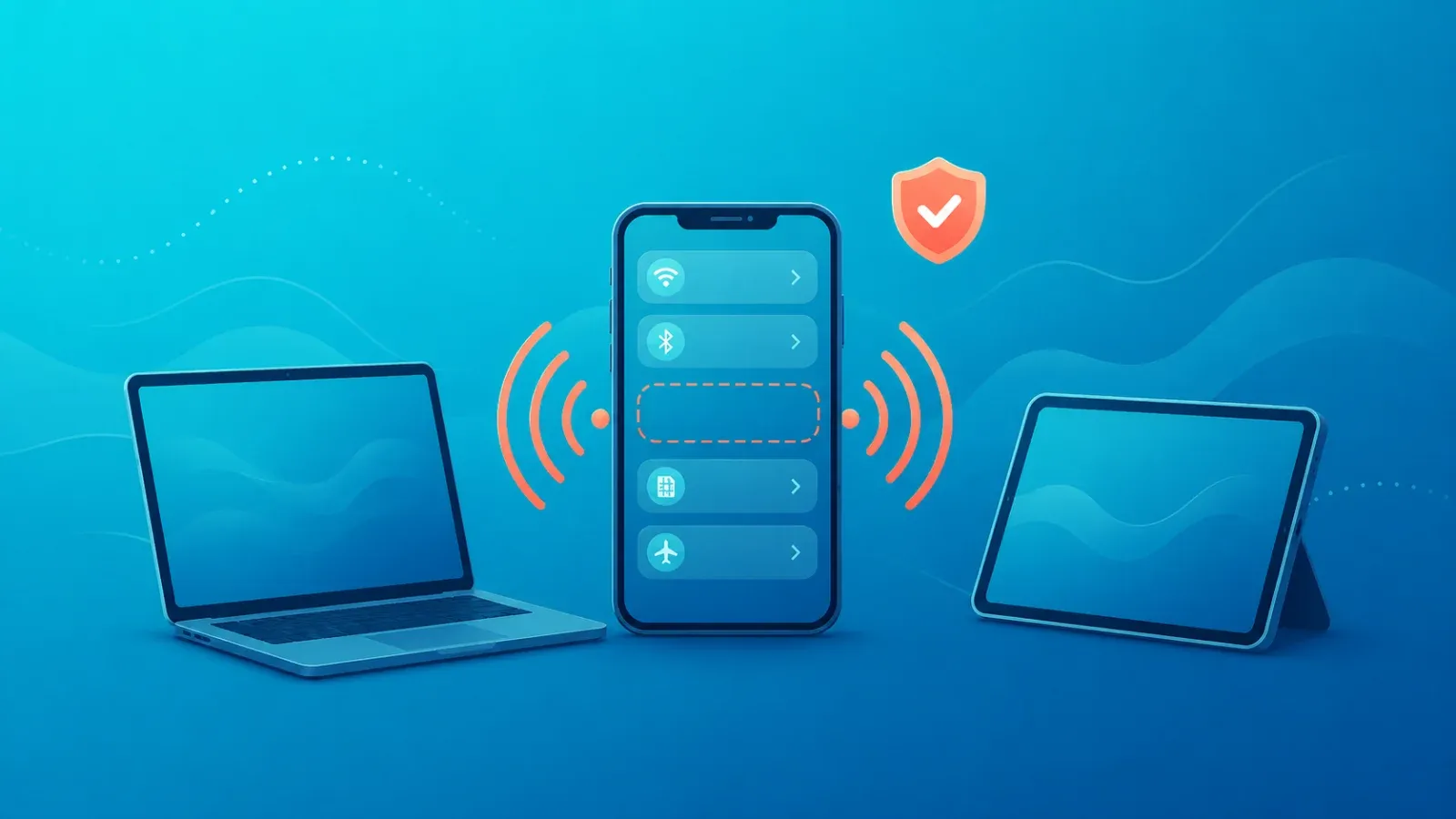
Nothing about eSIM technology prevents hotspot or tethering. An eSIM stores the same carrier profile a plastic SIM would, just on a chip built into your phone, so the data connection behaves identically. Whether you can share that connection comes down to two things: whether your plan allows tethering, and whether your device is configured to share.
Most "my eSIM won't hotspot" reports turn out to be one of those two, not a limitation of the eSIM itself. Below is how to tell which one you're hitting, how to set it up on iPhone and Android, and the dual-SIM trap that catches most travelers. If you're new to the format, our guide on what an eSIM actually is covers the basics.
The two conditions that decide whether tethering works
- Your plan has to permit tethering. Some data plans allow it freely, some allow it with a cap, and some exclude it entirely. Terms vary from plan to plan, so check the plan description before you buy rather than assuming.
- Your phone has to have Personal Hotspot turned on and pointed at the right line. This is where dual-SIM users get tripped up, since the shared connection follows whichever line is set as your mobile data line.
Get both right and an eSIM tethers exactly like a physical SIM. Miss either one and you'll see the classic symptoms: the hotspot appears but connected devices have no internet, or throughput collapses to something unusable.
Why tethering fails or crawls
1. The plan doesn't include tethering
This is the most common cause by far. Travel data plans are sometimes written around single-device use and exclude sharing. We can't state what any particular provider allows, because terms differ by plan. Check the plan description before purchase. For Coral eSIM, how tethering is handled is stated in each plan's description.
2. Fair Usage Policy (FUP) throttling
FUP is the clause that lets a provider reduce your speed after you pass a usage threshold. Plans marketed as "unlimited" almost always have one. Tethering pushes traffic from several devices through a single line, so you reach that threshold much faster than you would using the phone alone. The result feels like "tethering is slow" when it's really "the line is throttled." What the reduced speed looks like and whether it resets daily varies, so read the plan description.
3. The tethering APN isn't set
If your phone has internet but connected devices don't, the tethering APN may be blank. On some Android models the hotspot uses a separate APN entry from the main data connection. Use the values your provider documents.
4. Dual SIM is sharing the wrong line
When two lines are active, the hotspot shares whichever line is designated for mobile data — not the one you assume. Travelers who install a destination eSIM but leave mobile data assigned to their home line end up tethering over international roaming, which can get expensive quickly. Our dual-SIM setup guide for travel walks through the assignment step by step.
5. Battery saver and OS limits
Low power mode can shut the hotspot off or stop it accepting new connections. Many phones also disable the hotspot automatically after a period with no devices attached. Keep the phone charging while tethering and turn battery saver off temporarily.
Still stuck after all five? The line itself may not be connecting. See our eSIM troubleshooting guide for the wider set of fixes.
Setting up hotspot on iPhone
Screen names below are representative; wording and menu depth vary by iOS version and model.
- Open Settings and go to Cellular (or Mobile Data). Confirm your travel eSIM line is switched on.
- On the same screen, check the Cellular Data setting and make sure it points at the eSIM you want to use.
- Go back to Settings and open Personal Hotspot.
- Turn on Allow Others to Join.
- Note the Wi-Fi password, then connect from your other device.
If Personal Hotspot doesn't appear at all, the line may not have tethering enabled on the carrier side. Our article on what to do when eSIM options don't show in settings covers the diagnostic steps.
Setting up hotspot on Android
Android varies a lot between manufacturers, so treat this as the general shape rather than exact labels. Check your device manual for the specific wording.
- Open Settings, then Network and internet (or Connections).
- Select Hotspot and tethering (or just Tethering).
- Turn on Wi-Fi hotspot.
- Review the hotspot name and password, changing them if you like.
- If you have two SIMs active, open SIM manager and confirm which line handles mobile data.
What dual-SIM users must check
Dual SIM is where tethering goes wrong most often. Before you rely on it abroad, verify all of the following.
- Which line is assigned to mobile data. That is the line your hotspot shares. Both lines can show as active while only one is actually carrying data.
- Whether automatic data switching is on. If it is, your phone may silently move data to the other line based on signal. Turning it off while traveling avoids surprises.
- Whether data roaming is off on your home line. When you're using a destination eSIM for data, your home line's roaming should normally stay off.
- That voice and data can live on different lines. You can keep receiving calls on your home number while data runs over the travel eSIM. See how to keep your number while traveling.
Sharing with several devices or your family
Everything connected to your hotspot draws from the same data allowance. Add people and the consumption stacks up. Rather than quoting figures that vary wildly in practice, here's how usage tends to compare.
| Activity | Relative data use | Notes |
|---|---|---|
| Maps and transit directions | Low | Downloading offline maps first reduces it further |
| Messaging and text-based social posts | Low | Disabling autoplay for images and video helps |
| Photo sharing and cloud sync | Moderate | Set automatic backup to Wi-Fi only |
| Video calls | High | Lowering video quality cuts consumption noticeably |
| Video streaming | Very high | High-resolution playback burns through an allowance fast |
| OS and app auto-updates | Very high | Turn auto-updates off before you travel |
Actual needs depend heavily on how your group uses their phones, so pick an allowance with headroom and check before purchase whether you can top up mid-trip if you run short.
FAQ
I heard eSIMs can't do hotspot. Is that true?
No. The eSIM format has no bearing on tethering. When it doesn't work, it's nearly always because the plan excludes tethering or the device isn't configured. Check the plan description first, then your hotspot settings.
Why is only tethering slow?
Usually Fair Usage Policy throttling. Sharing across multiple devices consumes your allowance faster, so you hit the throttle threshold sooner than you would on the phone alone. The specifics differ by plan, so confirm in the plan description before buying.
How many devices can connect at once?
The limit is set by your phone's operating system and model, and it's typically a small number. Check your device manufacturer's official site for the current figure. Note that connected devices share the same bandwidth, so speed per device drops as you add more.
Can I tether a laptop or tablet?
Yes. Anything that connects over Wi-Fi, Bluetooth, or USB can use the shared connection. Laptops are worth watching, though — system updates and cloud sync can consume a large allowance quickly, so disable auto-updates before connecting.
Why does my battery drain so fast while tethering?
Your phone is running as a Wi-Fi access point continuously, which costs significantly more power than normal use. Keep a power bank handy for long sessions and switch the hotspot off when you're not actively using it.
Get connected the moment you land with Coral eSIM
Coral eSIM covers more than 180 countries and regions, and you can set it up as soon as you buy — no hunting for a SIM counter after landing. How tethering is handled is stated in each plan's description, so check there if you plan to share your connection with other devices. Browse plans at Coral eSIM.
